
FAQs & support
Need Help with the Regenerates Community? Find the answers to Frequently Asked Questions below
We aim to respond to community support requests within 1-3 days. However, we recognize you may sometimes need an answer more urgently than this. To assist you in those times, we have put together the following guide to frequently asked questions.
If something is not covered in the guide below, please email: support (AT) regenerat.es, attaching screenshots if possible.
I can't log in to the Regenerates Community platform
I have forgotten or lost my login credentials
Your account on our community platform, The Regenerates Community (hosted by Circle.s0), was created for you when you first registered for TRP.
Circle limits the capacity of Regenesis admins, and we cannot:
- Change your e-mail (you must do this yourself from inside the account if required)
- Reset your password (you must use the Forgotten Password link)
However, we can:
- Let you know which email you used if you have forgotten
- Help you to create a new account and transfer course access across to it (unfortunately, you will lose your progress on courses)
I’m not getting the Forgotten Password link:
Please follow this guide from Circle.
I don’t have an account yet:
If you paid in a different way (e.g. invoice), you should have received a coupon code to gain access to the platform. Please reach out to admin@regenerat.es if you are having trouble with any part of this process.
If you are a legacy user of our old platform and have not yet joined our new platform, you recieved an invite to join the platform in 2025. Reach out to admin@regenerat.es if you need us to re-issue your invite link.
I can't find the Zoom Link for my session
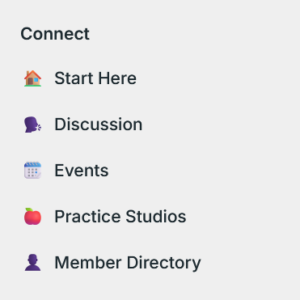
First, log in and find the navigation bar on the left hand side; this list displays all “spaces”, including those for courses you are enrolled in. This list of spaces has the following at the top:
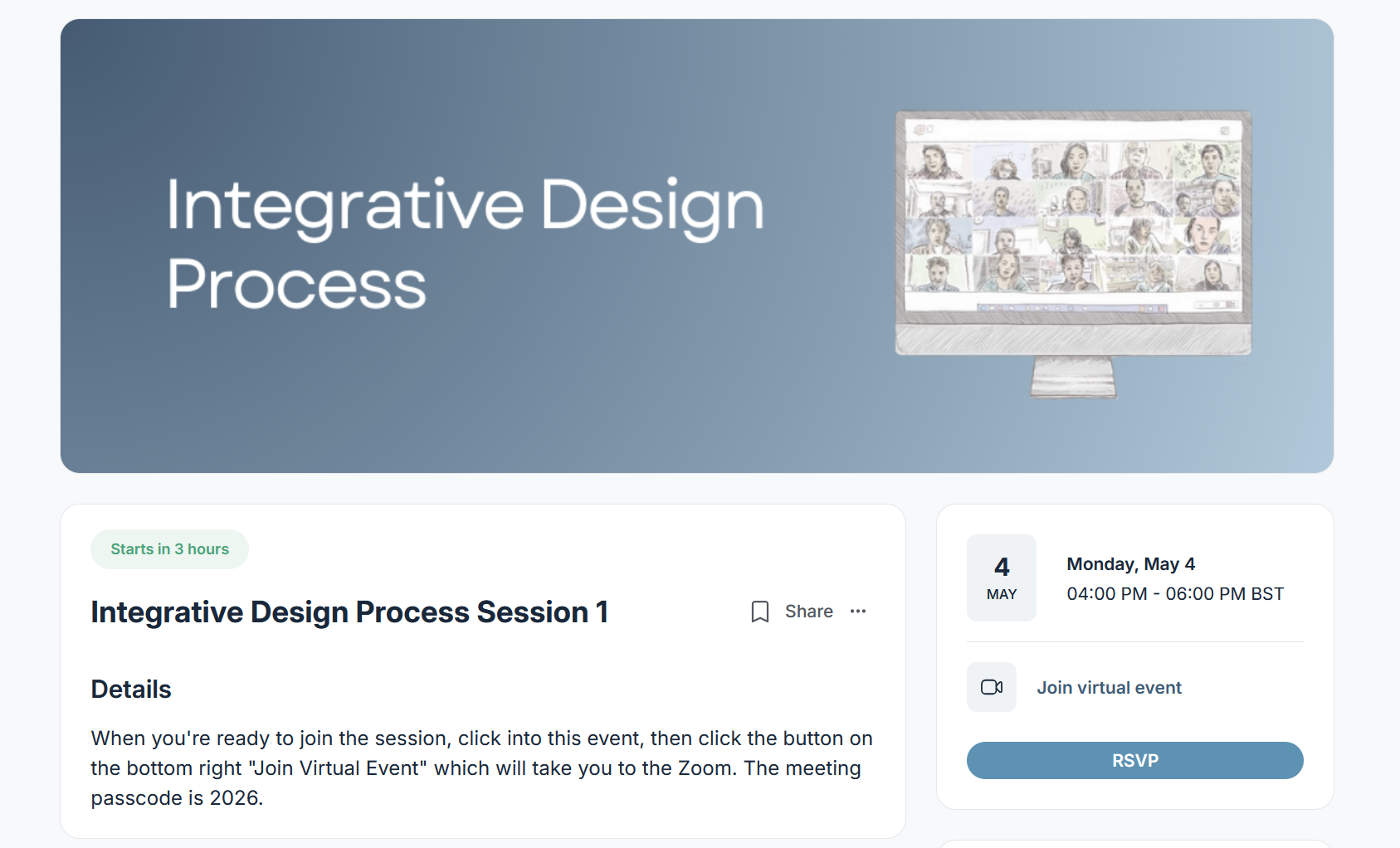
Navigate to the relevant course and identify the correct “Sessions” space:

You will see the next event automatically. Click into this event by clicking on the title or anywhere on the tab.

Press “Join Virtual Event” in the bottom right hand side to join the Zoom room.
I can't find the recording for a session I missed attending live
We post the edited recordings of sessions within two business days.
First, log in and find the navigation bar on the left hand side; this list displays all “spaces”, including those for courses you are enrolled in. This list of spaces has the following at the top:
Navigate to the relevant course, identify and click the appropriate “Sessions” space.

What you will see is the following, showing the next event automatically (or none if there are no more events):
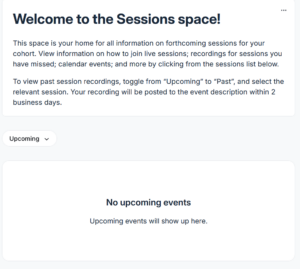
Click “Upcoming” and toggle it to “Past”, which will allow you will see a list of past events.
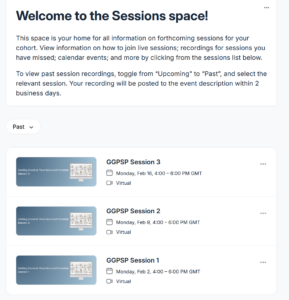
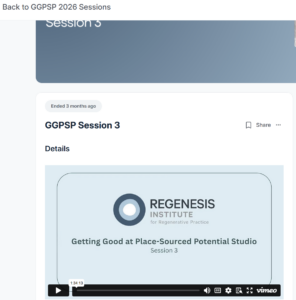
Open the session you wish to see the recording for and you will see the recording posted there:
I need a reciept/invoice for my transaction (including a change of details if required)
Download your receipt/invoice
You can easily download your own invoice/receipt for your transaction from within the platform by following this guide from Circle. An abridged version with screenshots is below.
Unfortunately, Circle does not allow Regenesis administrators to download individual user invoices, so you must do this step yourself.
1. Click on your profile picture/initials in the top right hand corner of the screen and choose “Billing”.
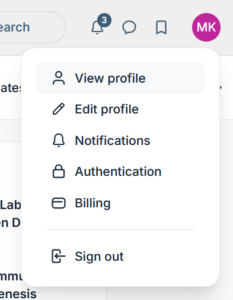
2. Click “History” and you will find a list of transactions with a downloadable invoice for each on the right hand side.

Update details (e.g. business address, tax details)
If you need to change your details, you also can do this yourself within the platform by following this guide. You can include tax numbers and other details in the Business Details line. An abridged guide with screenshots is below:
1. Follow the steps as above to navigate to your Billing profile
2. Choose “Address”
3. Fill in your address on the screen below. Additional information (e.g. tax details) is best to go in the Business Name section alongside your business name.
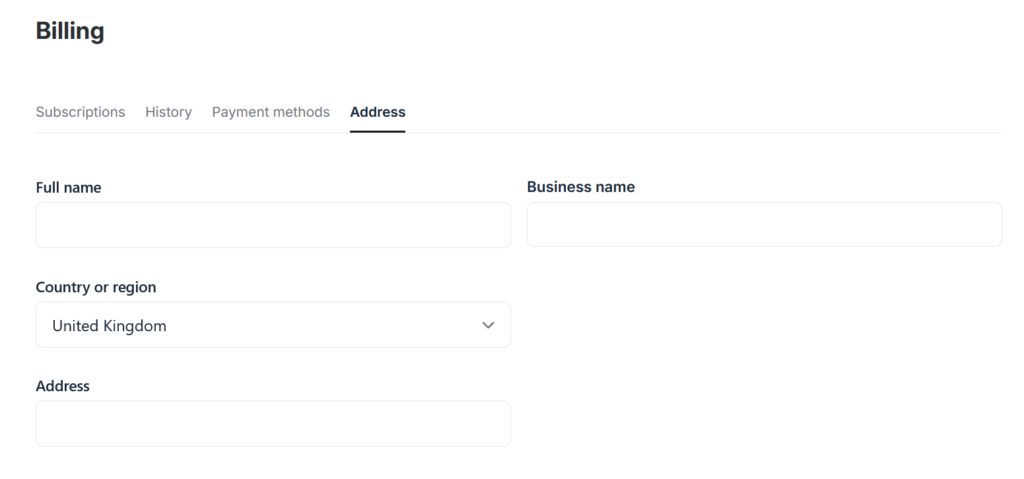
4. Return to the guide above to download the invoice with the new information on it.
If you require additional support, please reach out to support@regenerat.es
I need to add the event to my calendar!
First, log in and find the navigation bar on the left hand side; this list displays all “spaces”, including those for courses you are enrolled in. This list of spaces has the following at the top:
Navigate to the relevant course and identify the correct “Sessions” space:
You will see the next event automatically. Click into this event by clicking on the title or anywhere on the tab.
Press “RSVP” in the bottom right hand corner:
When you RSVP’d, you will have been emailed the .ics file automatically. Please check your spam/junk if you cannot find it. If you still cannot locate it, you can download your .ics file using the following method:
The following options appear instead of the RSVP button. Click “Add to Calendar”
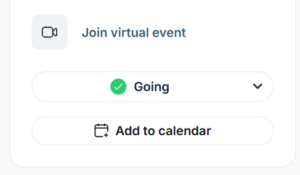
Once you click “Add to calendar”, you can choose whether to receive another email or download it manually
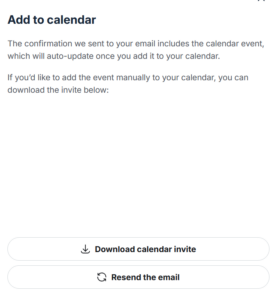
Importantly, just downloading the file is insufficient. In order to load the file into your calendar you must click on it and open it with your calendar programme!
Please follow the following external guides depending on which calendar you use if required :
Microsoft Outlook Calendar Guide
